Cacha Golf · 3.0.6
Tutorials
Choose a guide. Online foursome, getting started, templates, GPS and Caddy videos include narration and captions.
Guides for version 3.0.6. If you still use an earlier version, some menus may be in a different location.
Different foursomes, different rules? Save each group’s rules and stakes in a template and use it in New round or Prepare my round.
3.0.6 · Build 62
What’s new and guide · 3.0.6
Online leaderboard
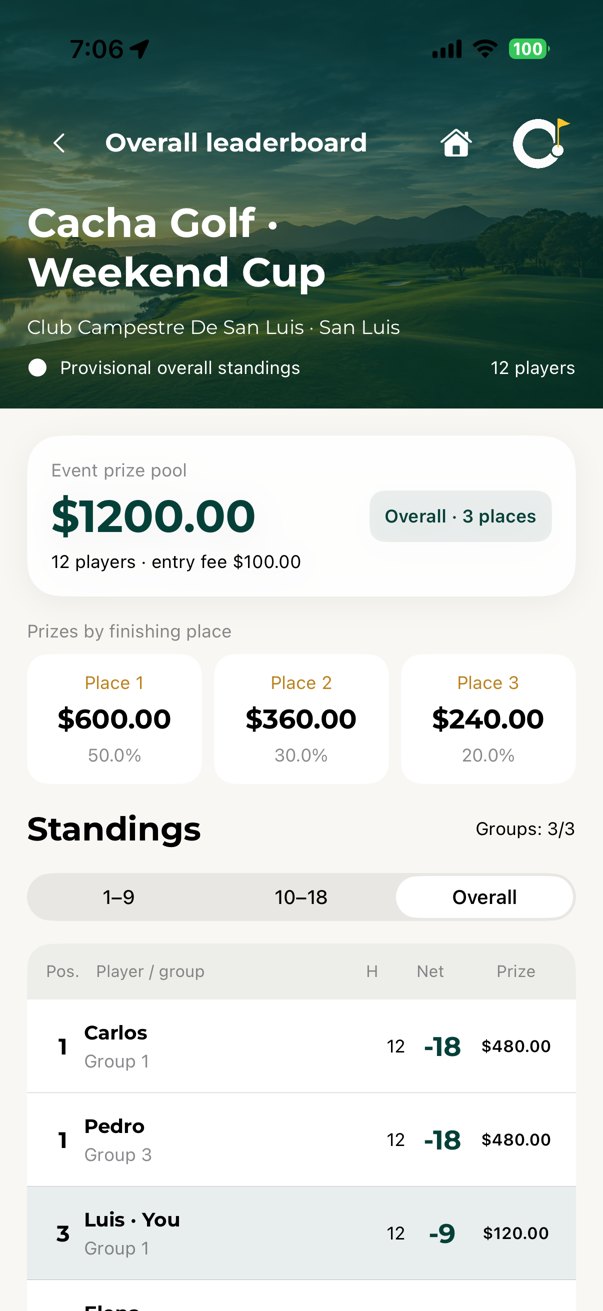
In Rounds → Leaderboards → Online, use the calendar with + to schedule and people with + to join. Set course, date, groups, handicap percentage, entry fee per player and prizes. Choose Overall places and set the number of winners and their percentages, or Winners by nine and Total and allocate the pool among 1–9, 10–18 and Total. Percentages must add up to 100. Handicap defaults to 100% and is editable.
The organizer can open Edit event to change the name, groups, handicap, entry fee and prizes without replacing the invitation. Before rounds are linked, the date, course and holes can also change. Reserved or connected groups cannot be removed. Hold an event to delete it with confirmation: the organizer removes it for everyone; a guest only removes it from their list. Saved local scorecards remain. Home is in the upper banner, to the right of the back button.
From a linked group’s scoring screen, tap the trophy for the leaderboard. Places and prizes remain provisional until every group completes and confirms its scorecard. Private foursome wagers retain their own settings.
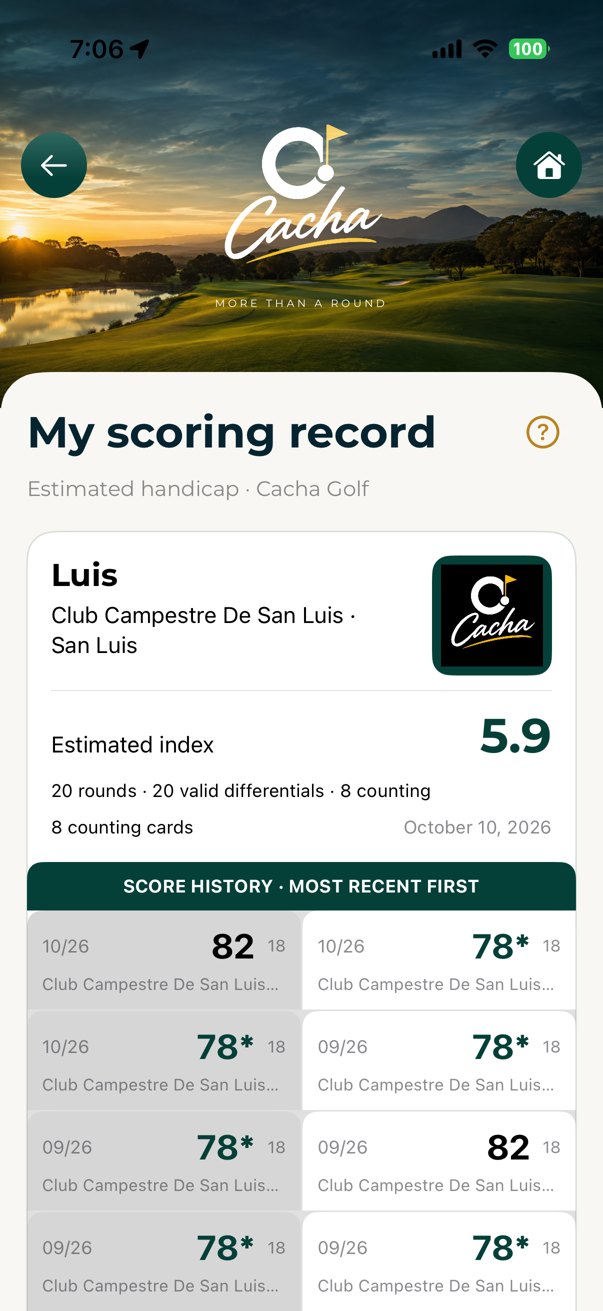
My score record and suggested handicap
My account → WHI icon opens the latest 20 scorecards and marks the counting scores. With 20 eligible differentials, the eight lowest are used; fewer cards use the applicable table. Scores and tee data, including rating and slope, are required. Nine-hole records include an estimated conversion to 18 based on available history and are labeled as estimates. Cacha’s suggested index is informational and does not replace an official GHIN index. Keep your manual handicap and check the suggested course handicap for your selected course and tee.
GPS, Caddy and My Bag
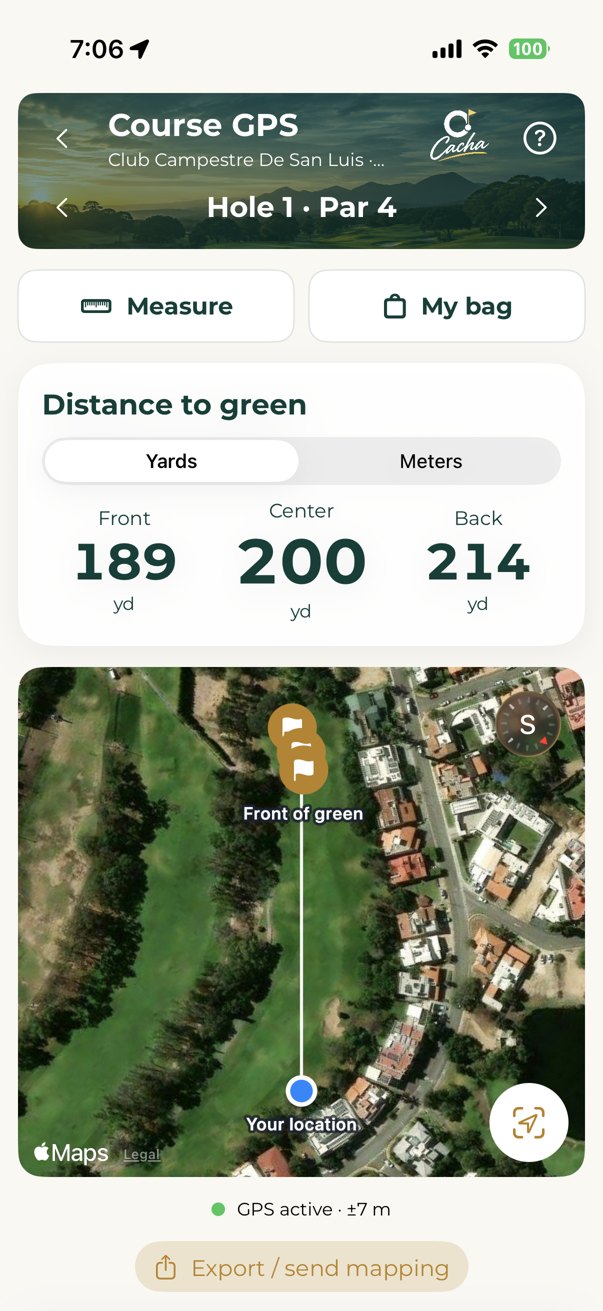
Course GPS shows the front, center and back of the green when saved references exist. The map orients from your location toward the green. The compact banner includes help; Measure and My Bag are below it.
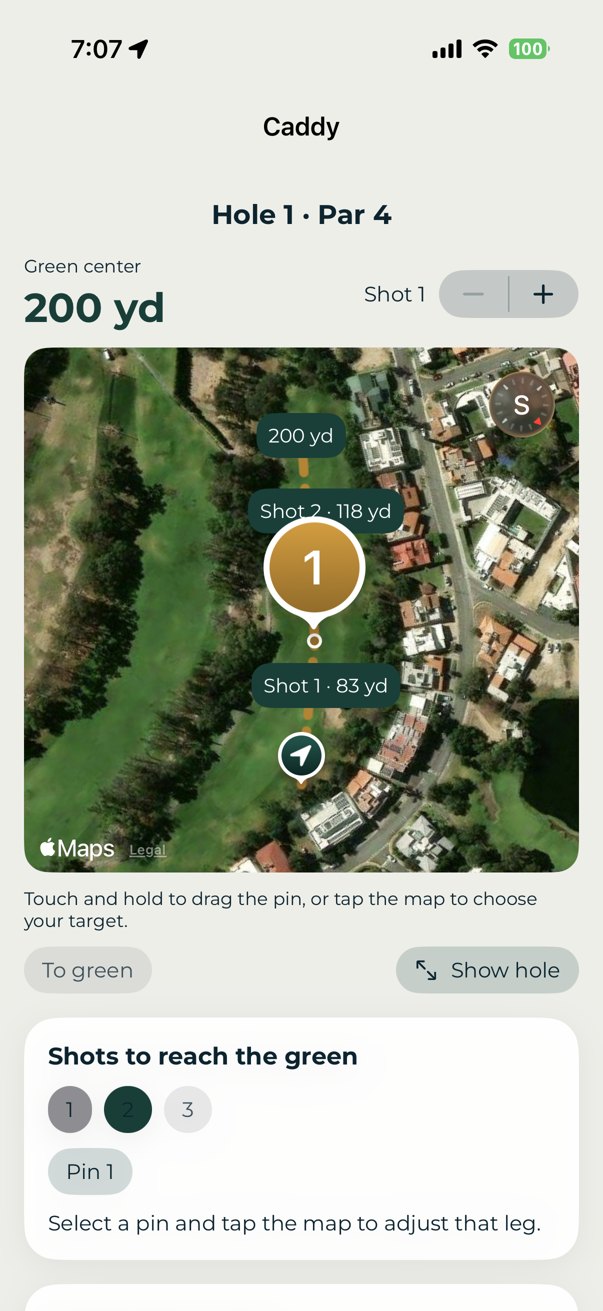
Caddy shows distance to the center of the green and lets you confirm which shot you are preparing, even when opening it midway through a hole. Choose the shots needed to reach the green and place intermediate targets on the map: one to reach in two and two to reach in three. Targets are movable and remembered for later rounds. Distances appear beside the lines. Use suggestion accepts the club; Other club lets you choose. Record Shot taken, then arrival at the ball to measure the actual distance and review the next club. Rate the shot and strategy afterward.
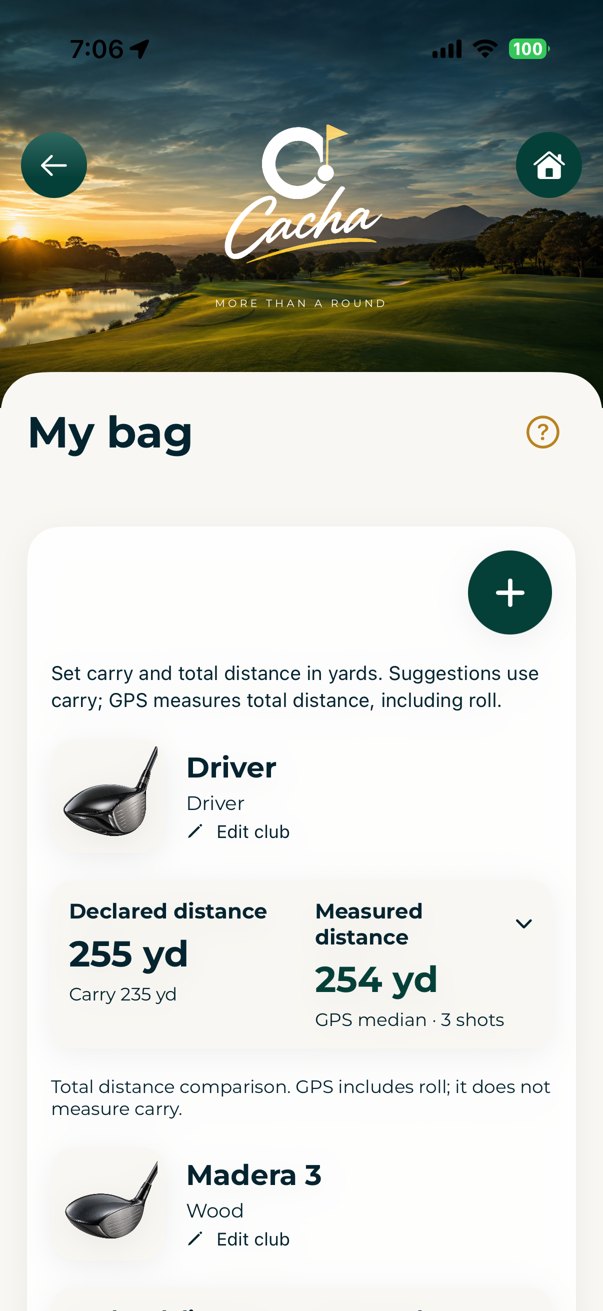
In My Bag, tap the Measured distance area to expand or collapse a club’s shot history. Excluding a shot removes it from measurements. The + adds a club.
Invitations and attestation
Share a scheduled round with guests so it appears in their scheduled rounds. When they link their profile, the app can remember the relationship for later invitations. Each guest uses their own statistics and Caddy. At the end, they can attest the scores; the scorecard shows confirmations and a participant count.
In Scoring → Players, select each person’s wagers for the entire round. Scores remain and amounts recalculate. Total only applies when participating in both nines.
Icon menus
Courses, My account and offline Leaderboards use icons to save space. Hold an icon for its explanation. Offline: + starts a multiple round; share sends a scorecard through AirDrop; $ sets the entry fee and percentages.
Your profile and first course
- Open Account from the home menu. Choose Spanish or English and save your name, handicap, gender and usual tee. No Cacha Golf password is required.
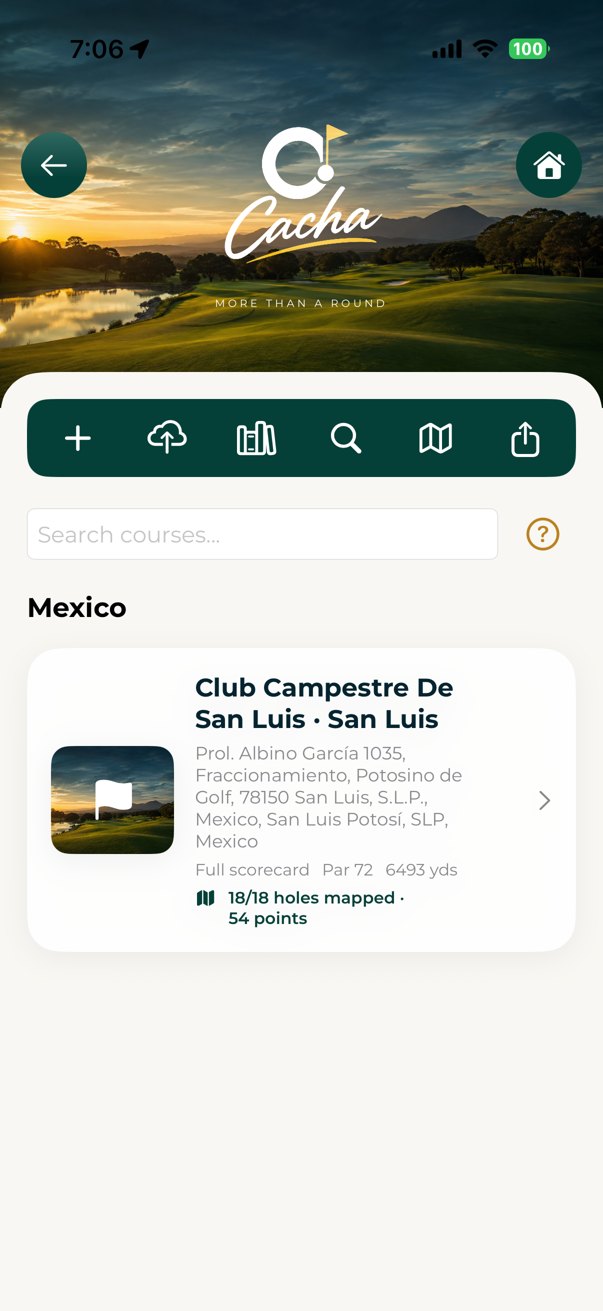
- Open Settings → Courses → Cacha Golf Catalog. Search for and select your course while connected to the internet.
- Review its scorecard, tees and GPS points. If you do not already have the course, select New course under Save to and tap Save course.
- Return to Account → Home Course and select your usual course. This preference saves automatically.
- Continue to Rounds → New round, or use Prepare my round to plan ahead.
The catalog does not require a GolfCourseAPI key. A downloaded course may have scorecard yardages without GPS points.
Create a 9- or 18-hole round
- Open Rounds → New round. Check the selected course; your Home Course is proposed by default.
- Choose Individual, Scramble or Best Ball and select 18 holes, 1–9 or 10–18.
- Add players and review their handicaps and tees. Saved preferences are used when they can be matched to this course’s tees.
- Use Choose a game template if you saved one for that foursome. Review your games and each player’s monetary participation. Enable statistics, Use Apple Watch, GPS or Map course as needed.
- Check the details and start the round.
If a usual tee is unavailable at this course, choose the correct tee before starting.
Prepare a round in advance
- Open Rounds → Prepare my round and create a scheduled round.
- Set the course, date, time, format, holes and friends who will play.
- Choose your group’s game template. Review games, optional amounts, and Watch, GPS and statistics preferences. Save the scheduled round.
- On the day of play, use Start scheduled round on the home menu and select the round.
- You can edit or delete a scheduled round before starting it.
Scheduling in Cacha Golf does not book a tee time with the club.
Enter scores and finish a round
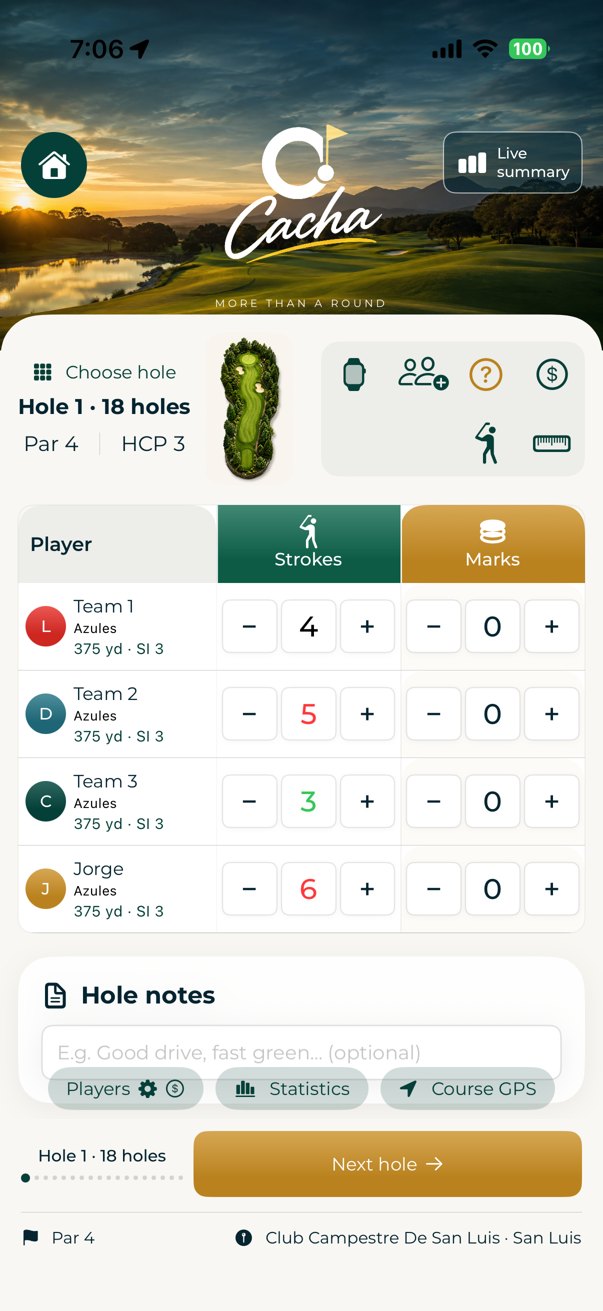
- Each score starts at zero. Enter actual strokes with + and −: below par is green, par is black, and above par is red.
- Use Choose hole to jump to any hole. Live Summary retains all recorded holes even when starting on hole 6, 10, 11, or another. Zero scores remain pending.
- Capture icons open Apple Watch, Help, games and amounts ($), Caddy, and Measure. Players is beside Statistics and GPS.
- For a withdrawing player, choose betting participation in the front nine, back nine, both, or neither. The 18-hole Total applies only to both nines.
- On the final hole, tap Review round. If scores are missing, accept the option to go to the first incomplete hole. Review the card, then Save and close.
Configure games, with or without money
- Open Settings → Game Settings. General settings save automatically. If you alternate between foursomes, save a setup for each group in My game templates.
- Enable only the games you need: Matches, Medal, Marks, Closest to Pin, Skins, Stableford, Sixes or Wolf. Review the round’s settings when creating it.
- Stableford calculates handicap-adjusted points, including solo play without money. Overall shows standings; Individual shows head-to-head results. Front nine, back nine and total amounts are optional.
- Skins: a single lowest net score wins the hole’s value and any carryover. Ties carry forward; contributions for unresolved final holes are returned.
- Sixes: four or six participants, with rotating partners every six holes. Wolf: four or six, choosing a partner or playing alone. Check the Wolf selection before each hole.
- Live Summary and final results show enabled games. Monetary tables appear when applicable.
- During the round, the $ icon lets you review or correct its games and amounts. Carry is configurable in Matches: a front-nine tie carries to the back nine only when enabled.
The app calculates results; it does not process payments. Read each game’s help for its rules and tiebreakers.
Templates: each foursome’s rules, ready to play
Play with different foursomes, each with their own rules and stakes? Game templates are your best option: save a setup for each group and choose it when starting or preparing a round.
- Open Settings → My game templates and tap Create template with these games. It starts with your current settings.
- Enter a unique name you will recognize, such as Saturday friends or Wednesday club.
- Open Edit games. Enable the group’s games and review available rules, handicap settings, payouts and amounts.
- Return to the editor and tap Save template. Unlike general Game Settings, the template editor requires this step.
- In Rounds → New round, tap Choose a game template and select your group. This is also available in Prepare my round.
- Review the course, players, tees, handicaps and monetary participation. For a scheduled round, also complete the date, time and Watch or GPS options before saving.
- To update the group’s usual setup, open My game templates → Edit name and games and save again. Choose General settings in the picker if you do not want to use a template.
Example names: Saturday friends · Wednesday club · No-money round. Create templates using each group’s agreed rules.
Templates store games, rules and amounts, not the course, players or date. Settings are copied into a round: changing that round does not change the template or general settings. Editing or deleting a template leaves started and previously scheduled rounds unchanged. To apply updated settings to a scheduled round, select the template again while editing that round.
My bag: declared and actual distances
- Open Settings → My bag → Add club.
- Select Driver, Wood, Hybrid, Iron, Wedge or Putter and give the club a recognizable name.
- Enter carry and total distance in yards. Suggestions initially use declared carry as a reference.
- Compare Declared distance with Actual distance from measured shots. Check the sample count and exclude measurements that do not represent a normal shot.
GPS measures total distance including roll, not carry. One measurement does not establish your typical distance.
Caddy: plan, play and learn
Narrated video with an illustrative walkthrough. Example distances do not represent a real course.
Caddy plans your route to the green and learns from the shots you record. Open the Caddy icon on the hole-entry screen. Include your profile in the round and configure your clubs and distances in My Bag.
Plan the route
Choose the number of shots to reach the green: par 3 allows 1; par 4 allows 1 or 2; par 5 allows 1, 2, or 3. For two shots, tap the map to place pin 1. For three shots, place pin 1, then pin 2. The green is the final destination. Select the pin or its button, then drag it or tap its new position.
Leg distances appear beside the map lines. Once the targets are complete, Caddy suggests a club for the next shot. Future rounds restore your latest pins for the same player, course, hole, and tee; you can adjust them.
Take the shot
Tap Use suggestion to accept the recommended club and start measuring from your GPS position. To choose differently, tap Another club, select your club, and tap Shot taken where you hit the ball. The suggestion card is hidden while measurement is in progress.
Walk to the ball
When you arrive, tap Shot N location · I reached the ball. Confirm whether the shot went as planned. Caddy saves the measured distance and distance from target, then recommends the next club from your current position. Repeat until you reach the green. Choose I am on the green to finish, even if you arrived earlier than planned. Cancel measurement removes only the shot in progress.
Rate and learn
At the end of the hole, enter your score and rate whether the strategy worked. You can also use Rate this hole’s strategy in Caddy. History compares your successful shots and results for the same course, hole, and tee. Historical recommendations need enough comparable shots; restoring the latest pins does not require a previous rating.
GPS and history
Measurement requires recent, accurate GPS at both positions. Measured distance includes roll; it is not carry. Shots in progress and strategies are saved locally and included in personal backups. Suggestions use distance and history; they do not consider wind or elevation or guarantee clearance over obstacles. Your final hole score also depends on other shots and putts.
Distance to the center of the green remains visible. If you open Caddy after teeing off, confirm the shot you are preparing. GPS and Caddy orient the map from your location toward the green.
Measure a shot with GPS
- Allow location access and wait for a recent, accurate position.
- Open the ruler icon below Live Summary, or Settings → My bag → Measure a shot.
- Beside your ball, select the club and tap Mark shot start.
- When you reach the ball’s finishing position, tap Save shot end. Use Cancel measurement if you started by mistake.
- Return to My bag to review the result and compare it with other measurements.
Accuracy depends on GPS reception and your start and end positions. The measurement does not track the trajectory or separate carry and roll.
GPS distances and Apple Watch
- Enable GPS when creating a round and allow location access. Use a course with mapped points.
- Open Course GPS from scoring to view available front, center and back-of-green distances and references. Caddy also shows points on the map.
- Enable Use Apple Watch when creating a round or use the watch icon during play. Install the companion app on a compatible Watch paired with your iPhone.
- The Watch follows the active hole on your phone. Scroll for references and switch to the score page to enter strokes.
- If a distance is missing, check location, reception and whether that point is mapped for the hole. Check the age and accuracy of GPS readings before using them.
Scorecard yardages are different from distances measured from your position.
Map bunkers, water and fairway references
- In Rounds → New round, enable Map course; GPS also turns on. Start the round and open Map course from scoring.
- Check the hole. Stand at the reference point and wait for an accurate position. Mapping saves your physical location, not a target pin selected in Caddy.
- For a bunker, select Bunker, enter a unique name and save Entry at the near edge. At the far edge, keep the same name and save Exit.
- For a fairway target beyond water, reach it safely and save Other → reference name → Reference.
- View points in Course GPS or Caddy. Use the pencil to correct a position and confirm replacement.
- Use Export / send mapping to back up or share. You can also use Settings → Courses → Send / back up course data.
Saving points stores them on your phone; it does not automatically publish them to the catalog. Video diagrams are illustrative.
Multi-group rounds: online or AirDrop
- Open Rounds → Multi-group round and choose online or offline.
- For online play, the organizer creates the event with course, date, time and group count, then shares its code.
- Other participants select Join and enter that code. They can join before the day of play.
- On the scheduled day, start the corresponding round and review shared groups and results.
- For offline play, use the existing AirDrop scorecard exchange flow.
Online features require iCloud and internet. Sharing a code does not automatically send invitations.
Scorecard, results and saved rounds
- In Live Summary, tap View full scorecard. It includes GROSS and NET for holes 1–9, 10–18, and total.
- Enabled games appear in live and final results. The $ icon lets you correct the active round’s games and amounts.
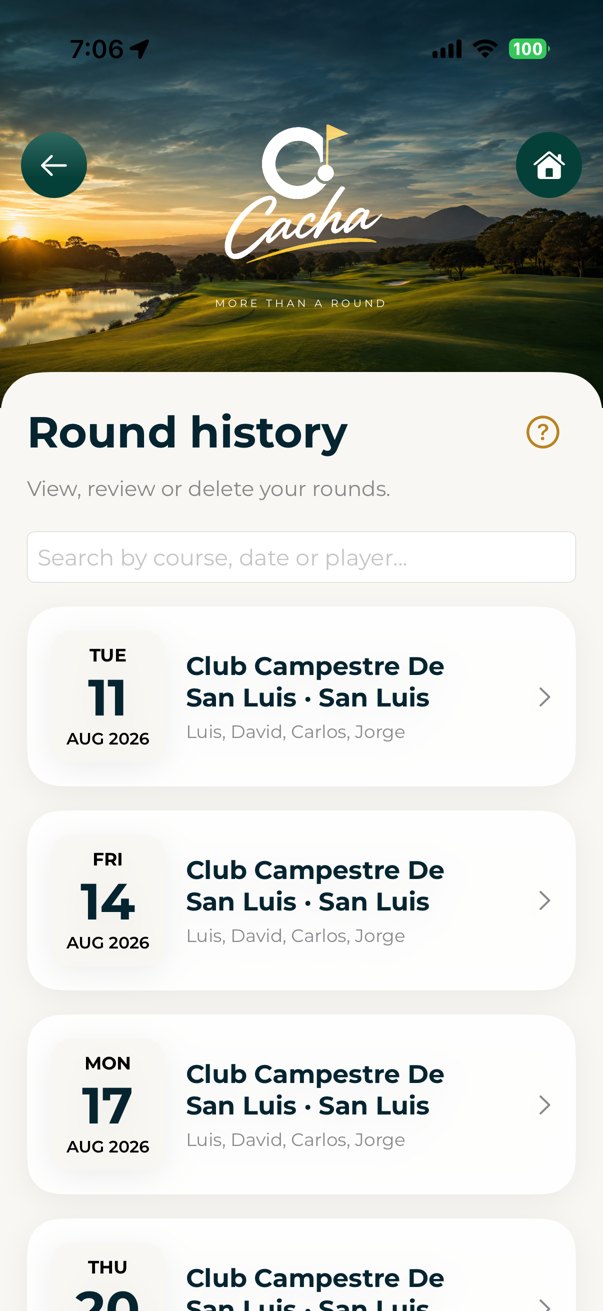
- At the end, review scores, Marks, Closest to Pin, and participants. Save and close to retain the round in Played rounds.
- The personal summary shows FIR, GIR, putts, and penalties against your complete-round averages for the same course, tee, and layout.
Statistics and personal backup
- Enable personal statistics when creating the round and include your profile. Record FIR, GIR, putts, and penalties while playing.
- At the end or when opening a saved card, compare results with complete rounds from the same player, course, tee, and layout. The current round is excluded from its own average; incomplete data is not counted as zero.
- FIR applies only to par 4 and par 5. An unrecorded putt count is different from zero putts.
- Account → Personal iCloud backup includes rounds, clubs, measurements, and Caddy history and strategies. Backups are manual and require iCloud and internet.
Friends and courses
- Open Account → Friends to save frequent players and their handicap and tee preferences.
- In Settings → Courses, browse courses by country and name, download from the catalog or add one manually.
- When importing or editing, check country, scorecard, tees and stroke indexes before playing.
- When updating an existing course, confirm it is the same course and preserve its mapping. Do not combine two different courses.
Report incorrect data using available report options or contact support with the course name.
3.0.5 · Build 61
Online foursome: play and share
Narrated video with real app screenshots and a demonstration round.
Download video · Download manual
Online foursome round
1. Before starting
Everyone needs an updated Cacha Golf app and an active iCloud account. Each guest sets up My profile, clubs in My Bag and location access for Caddy or GPS. Save or finish another active round before linking.
2. The scorekeeper shares the round
Start a round with the foursome players, course and wagers. Tap the invitation icon (people with +) on the hole-entry screen, or open Online games → Share my round. Create the invitation and send the link through Messages or WhatsApp. You can also share the full code.
3. Guests open and link
Tap the link on the iPhone. Cacha Golf opens the round. Alternatively, open Online games → Join with code and paste the full code. Select This player is me for your player. Each player can link to one account, and each account can claim one player in the round. The scorekeeper's profile is reserved when included as a player.
4. The same screen for everyone
Linking opens the usual hole-entry screen. View scores, Closest to the Pin, Marks, wagers, the full scorecard and Live Summary. Visit any hole. The scorekeeper edits scores, Closest to the Pin, Marks, players and wagers; guests view these without changing them.
5. Personal statistics and Caddy
Statistics records data for your linked player. Caddy uses your profile, clubs and history. GPS requires location access and available course points. Personal tools keep their data on your device: new scores do not erase your statistics. Caddy data is not sent to other participants.
6. Updates and connectivity
The app attempts to refresh every 15 seconds while running. Use Refresh in Shared round to request an update. Offline, you can view the last received information. Pending scorekeeper entries retry when synchronizing. Updates are not guaranteed to be immediate.
7. Each player's history
The linked round stays in your history with your identity and statistics. When the scorekeeper finishes, subsequent updates receive the final scores. Saving and closing your personal view does not end the group's round. Synchronization replaces the same scorecard to avoid duplicates.
8. Wager participation
On the scorekeeper's phone: Players → player name → Whole-round wagers. Enable only that player's games: David can join Medal without Matches, Closest to the Pin or Marks. Apply to the whole round recalculates from the start and preserves scores. Nine selection remains an additional option; Total requires both nines. Sixes and Wolf require 4 or 6 participants in that game.
9. Disable the invitation
The scorekeeper can disable the invitation in Shared round. Shared access ends, but scorecards already saved on participants' devices remain.
This feature shares one foursome round. Scheduled multi-group games retain their reservation and overall leaderboard workflow.
Current screens · 3.0.6
Actual iPhone app screenshots with sample data.